Applications for Video Matrix Switches

Video matrix switches are designed to simplify the task of routing video signals from multiple sources, such as computers, surveillance cameras, and DVD players, to one or more display devices, such as monitors, projectors, and TVs. The benefits of deploying video matrix switches include reducing equipment costs and space needs, while giving video system designers more control and flexibility. These electronic switches are used in many applications, including: digital signage, command and control centers, boardrooms, entertainment facilities, conferences and trade shows, courtrooms, classrooms and home theaters.

Digital Signage
Using a video matrix switch in a digital signage application allows targeted messages, video content and advertisements to be displayed digitally in specific locations during particular times. Video matrix switches allow a user to independently route real-time, multi-input video and audio signals to multiple displays for the ultimate flexibility in distributing multimedia information in public venues, such as in retail chain stores, airports, museums, and banks.

Command and Control Centers
Command and control centers use video matrix switches to route multiple audio/video inputs (computers, cameras, and specialized equipment) to individual monitors or to a common display wall. Controllers can monitor data, alternate between different sources and, if needed, drive the signal to different viewing stations or send information through public address systems.

Boardrooms
Corporate boardrooms often require both fixed and portable video sources for business presentations. Video matrix switches allow the inputs from participants’ laptops to feed into the facility’s projector. Additionally, video conferencing can be incorporated with the use of video matrix switches.

Entertainment Facilities
Food and beverage outlets, such as restaurants and sports bars, often use video to bring entertainment programming to their customers. These establishments use a video matrix switch to route video and audio inputs from DVD players, cable boxes, and satellite feeds to multiple displays and speakers. In addition, surveillance camera inputs can be managed from a single security station using a video matrix switch to monitor activities at cash registers, exists, and parking lots.

Conferences and Trade Shows
At conferences and trade shows, presenters need the ability to display video material from different sources on demand. By using a video matrix switch, presenters can easily manage their video feeds to address the particular needs of audience members by switching from one video source to another as needed.

Courtrooms
Courtrooms often need the ability to present video content to different locations around the room for viewing by a judge and jury members, among others. Video matrix switches enable the quick and efficient presentation of key evidence, such as graphic reenactments of accidents or crime scenes, as well as video depositions. Courtroom security and confidentiality can be maintained in special instances, such as limited viewing by a single witness, or previewing by a judge. Video matrix switches also enable entire arrangements and bench trials to be conducted virtually.

Classrooms
Using video matrix switches in educational environments allows multiple classrooms to operate centrally located sources like VCRs or DVD players, which reduces space needs and equipment costs. Within individual classrooms, video matrix switches allow instructors to easily alternate between video sources during lessons. Even specialized equipment such as electronic whiteboards can be incorporated into the system.

Home Theater
A video matrix switch implemented in a home theater allows routing of audio and video signals from many sources (DVD player, satellite set top box, game system, etc) to multiple displays in the same room or throughout a home from a centralized location. This enables a user to eliminate multiple remote controls and easily monitor display content, while increasing the number of sources available to each display.

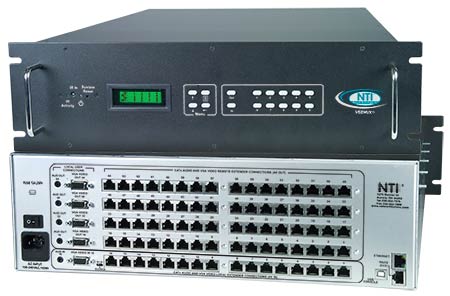
VEEMUX SM-16x64-C5AV-1000

Network Technologies Inc (NTI) offers a variety of video-only and audio/video matrix switches to improve presentation efficiency, reduce equipment and energy costs, and maximize space usage. In order to provide innovative video matrix switch solutions, NTI invests in research and development, and performs rigorous testing on all products to ensure long-lasting and proper operation. NTI’s video matrix switches are hardware-based solutions known for their ease of use, reliability, high performance, and crisp and clear video resolutions. Video signals supported include: DVI, HDMI, VGA, S-Video, Component YPbPr video, and SDI/HD-SDI/3G-SDI. Some switches, such as the VEEMUX SM-nXm-C5AV-1000, support multiple video signals and are compatible with extenders that enable a distance of up to 600 or 1000 feet between the video source and display – thus offering great flexibility while reducing space needs. With such comprehensive options available, NTI’s video matrix switches are ideal for numerous applications ranging from personal to professional use.

Posted in Insight | Tagged , , , | Leave a comment

HDBaseT Technology

The main drawback of HDMI as an A/V connection standard for high definition video distribution is cable length limitation. Installation costs quickly add up when you consider HDMI cables, control cables and HDMI repeaters for solving distance limitations. As a result, a multitude of HDMI extenders over standard CAT5e/6 cable became available, with each of them providing proprietary solutions to support HDMI extension. The downside was that 150 feet proved to be the maximum distance for 1080p/24bit/60Hz resolution, with HD support guaranteed well under 100 feet. As 3D formats grew in popularity, so did the need for new technology.

HDBaseT is a new connectivity technology optimized for home and commercial multimedia distribution promoted by the HDBaseT Alliance. The cornerstone of HDBaseT technology is the “5Play” feature—transmitting full uncompressed high definition video, audio, 100BaseT Ethernet, power and various control signals through a single standard 100m/328ft CAT5e/6 solid cable.

HDBaseT supports TV and computer video formats, including standard, enhanced, high definition and 3D video, as well as all audio standards. HDBaseT delivers full HD/3D and 2K/4K uncompressed video in a point to point connection or a single to multipoint distribution supporting both daisy chain and star topologies. When cascading, extension limits can go beyond 100m/328ft – up to eight additional runs can be combined. This flexibility makes HDBaseT an ideal commercial technology for applications like digital signage.

The technology enables televisions, hi-fi equipment, computers, and other devices to communicate with each other and to access stored multimedia content through 100Mb Ethernet support. Different types of control signals are also supported by HDBaseT technology: Consumer Electronic Control (CEC) that operates basic functionality such as power-on, power-off play and stop; RS232; USB; and infrared (IR) that operates remote equipment even when located in a different room. Such a large variety of control signals provides manufacturers and integrators the flexibility to choose the best solution for their needs.

The latest addition to the HDBaseT 1.0 specification is Power over HDBaseT (PoH). This enables the transfer of DC power, along with data signals, over a single Ethernet cable in a manner similar to Power over Ethernet (PoE). PoH safely delivers up to 100W over four pairs of Ethernet cable, which provides power to attached devices through the cable without the need for additional power supplies. The latest Energy Star 5.3 Specification restricts all televisions to 108W of power consumption, regardless of screen size. The developing Energy Star 6.0 Specification targets a cap of 85W for all televisions. At these levels, HDBaseT has ample power delivery capabilities for even supporting large displays in various applications.

Check out NTI’s series of HDBaseT Extenders, Splitters and Matrix Switches:
HDMI HDBase-T Extender with IR & Optional RS232/Ethernet via One CAT5/6
Low-Cost HDMI HDBase-T Extender with IR via One CAT5e/6
HDMI USB KVM Extender over HDBase-T
HDMI HDBase-T Splitter/Extender via CAT5e/6
HDMI Matrix Switch Over HDBase-T with Direct HDMI Inputs & CAT6 Outputs

Posted in Insight | Tagged , , , , , , , , | Leave a comment

Cost-Effective Video Matrix Switch Installations

Matrix switches, sometimes called crosspoint switches or crossbar switches, are a special category of switches that allow many different inputs to be routed independently to any of a number of outputs. Each input can go to one output or be split to multiple outputs simultaneously.

Video matrix switches, as the name implies, switch video signals between several sources (such as cameras, computers, DVD players, and cable boxes) and displays (monitors, TVs, or projectors). This type of switch is used almost anywhere multiple video feeds are shown – auditoriums, trade shows, military command centers, airport terminals, sports bars, security surveillance control rooms, etc.

There are many different video signal formats – composite video, S-video, YPbPr component video, VGA, etc. – that are not directly compatible with each other. While there are some very expensive matrix switches on the market today that use proprietary modules to translate between these different formats, most customer applications use only a single format and do not require this added complexity and cost. A well-designed, inexpensive matrix switch that supports multiple video formats, but will not convert them is a cost-effective yet versatile solution for switching inputs and outputs with the same video format.

For more extensive installations requiring a large number of inputs and outputs, keeping all of the sources and displays in close proximity to the switch becomes less practical. The most common and cost-efficient method of long distance video transmission is over twisted pair cable, such as CAT5. In this configuration, a specialized video extender is connected to each video source, which transmits the video (and optionally audio and other signals) up to 1000’ away. Likewise, a mating receiver is connected at every display device to reconvert the signal back into a standard format. Using a compatible video matrix switch in between, the components of the system can be spread out and tailored to the installation site.

There are several advantages for using a switch with CAT5 cable over coaxial cable like RG-6: the cable itself is less expensive; it is thinner and more flexible, hence easier to install; and the jacks for the modular RJ45 connectors can be more tightly spaced, reducing the necessary enclosure height for a given size matrix switch.

VEEMUX SM-16x64-C5AV-1000

NTI’s SM-nXm-C5AV-1000 VEEMUX® Audio/Video Matrix Switch via CAT5 is designed to route A/V signals distributed by our 600′ and 1000′ video extenders. The switch allows connections from VGA, S-Video or HDTV transmitters to any receiver of compatible type (e.g. VGA to VGA). The unit supports as many as 32 video sources and 64 video displays. Due to innovative design, each NTI switch uses the least amount of rack space for its matrix size compared to other switches in the industry, thus saving costs when rack space is at a premium. Multiple control methods such as the front panel keypad, optional infrared remote control, RS232, 10/100 Ethernet and USB provide much versatility. Cost-effective and space-saving, the VEEMUX SM-nXm-C5AV-1000 proves to be invaluable in most extensive installations.

Posted in Insight | Tagged , , , , | Leave a comment

Ethernet Control for SERIMUX® Console Serial Port Switch

Ethernet Control for SERIMUX® Console Serial Port Switch
The Ethernet Control option for SERIMUX Console Serial Port Switches allows you to alternatively control the switch via the Internet via the Web Interface or Telnet. Depending on your preferences for controlling your serial port switch, you may feel more comfortable using the Web Interface for simple tasks, and Telnet for more complex configurations.

Command Line Interface (CLI)
Telnet to the Command Line Interface of the SERIMUX through a standard Telnet client (HyperTerminal, Tera Term, PuTTY, PuTTYtel, etc.) to perform configuration tasks such as running scripts, saving configuration settings, restoring configuration settings, and restoring default settings. You can display and configure port parameters, connect/disconnect ports, clear the port buffer, view/modify user list/settings, configure telnet base port, update firmware, and more. The commands are keyword based, nested in a hierarchical format. Command autocompletion is available by typing a partial command, and then pressing the TAB key once. If you press the TAB key twice, context sensitive help can guide you to the correct commands. Check out our helpful guide for updating firmware via the Command Line Interface for the SERIMUX-CS-x.

Web Interface
SSL (Secure Sockets Layer) is a popular way to encrypt information over the Internet. Websites use SSL to create an encrypted channel allowing you to send and receive data securely. The Ethernet Option on the SERIMUX Console Serial Port Switch allows you to securely configure the console switch via the SERIMUX website. Through the website, you can manage ports and users, clear the Port Buffer, create and initiate modem connections, and other administrative tasks safely and conveniently.

Demo
Check out our web server product demo for the SERIMUX Console Serial Port Switch by visiting our web server interface demo, or Telnet to IP Address: 98.17.207.201, using port: 23, username: guest, password: guest. Connected to Port 1 within the demo is a Proteon GTS VPN Router, no username or password required. Only one user at a time is allowed to Telnet to the SERIMUX-CS-x Console Switch. If the connection is not working, someone else is logged in, and try again later.

Posted in Insight | Tagged , , , , , , | Leave a comment

Protecting Video Signals from EMI When Using CATx Extenders

Previously, I discussed how electromagnetic interference affects video signals when using a CATx extender. In this posting, I will be discussing how using shielded cable can protect your video signal from EMI.

A simple and cost effective way to prevent EMI from interfering with signal transmission when using a CATx extender is to use shielded cable to transmit the signal. Cable shielding is offered in a wide range of designs. Each type of shielded cable construction offers distinct advantages that need to be carefully considered when selecting the best and most cost-effective option for a given application.

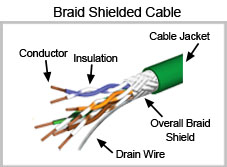
Braid Shields: A braid shield on a twisted pair cable, shown in Figure 1, provides effective shielding at audio, as well as RF ranges. It also provides excellent structural integrity while maintaining good flexibility. Braid shields are better than foil for minimizing low frequency interference and have lower DC resistance.

Figure 1: Braid Shielded Twisted Pair Cable

Figure 1: Braid Shielded Twisted Pair Cable

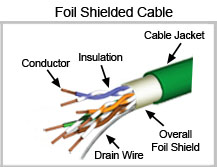
Foil Shields: A foil shield on a twisted pair cable, shown in Figure 2, offers excellent protection against electromagnetic interference at audio and radio frequencies. They weigh and cost less than braid shields.
Due to their small size, foil shields are commonly used to shield individual pairs of multi-pair cables to reduce crosstalk.

Figure 2: Foil Shielded Twisted Pair Cable

Figure 2: Foil Shielded Twisted Pair Cable

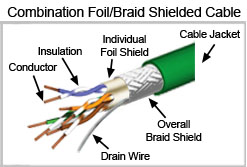
Combination Foil/Braid Shields: A twisted pair cable with a combination foil/braid shield, shown in Figure 3, provides maximum shield effectiveness across the frequency spectrum. The combination foil/braid combines the advantages of 100 percent foil coverage with the strength and low DC resistance of a braid.

Figure 3: Foil and Braid Shielded Twist Pair Cable

Figure 3: Foil and Braid Shielded Twist Pair Cable

How Shielding Helps Reduce EMI Problems
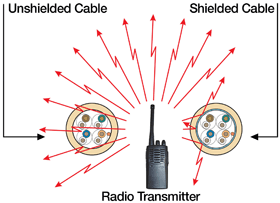
Reflection and absorption are the primary ways in which shielding significantly reduces the EMI strength on the signal carrying conductors inside a shielded twisted pair cable. Figure 4 is a representation of how the cable can reflect the high frequency EMI such as from a radio transmitter. The same shield will also absorb some of the energy of the radio transmitter EMI, further reducing the amount of EMI that makes it to the inner twisted pair conductors. When properly installed with shielded connectors to grounded equipment, the shielding redirects a small amount of the electromagnetic energy. These effects of reflection, absorption, and redirection make shielding very effective at reducing problems from high frequency interference.

Figure 4: Representation of Braid or Foil Shielded Cable Reflecting EMI

Figure 4: Representation of Braid or Foil Shielded Cable Reflecting EMI

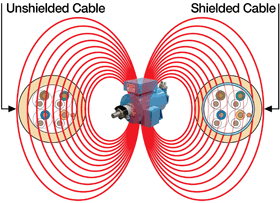
The best way to protect against EMI from low frequency magnetic fields, such as those from a motor or a large transformer, is to provide sufficient distance between the cable and the source of the interference field. Cable shielding has only limited effectiveness at preventing interference problems from lower frequency magnetic fields. Instead of reducing a magnetic field by reflection or absorption, the cable shielding produces a magnetic field in opposition to the interfering lower frequency magnetic field. This has the result of reducing the intensity of the changing magnetic field that reaches the twisted pair conductors. Figure 5 is a representation of how shielding can reduce the strength of this type of interference from reaching the internal twisted pair conductors.

Figure 5: Cable Shield Reduces the Intensity of EMI inside the Cable

Figure 5: Cable Shield Reduces the Intensity of EMI inside the Cable

If you have an electromagnetic noise problem, it is recommended to use shielded cable. When dealing with only higher frequency electromagnetic noise such as from a radio transmitter, a foil shielded cable provides adequate protection. To achieve effective shielding against low frequency electromagnetic fields such as from an electric motor, a braid shield or a combination foil/braid shield is necessary. If you are unsure about the type of electromagnetic noise, it is recommended that you use a combination foil/braid shielded cable, because it provides the best protection against the widest range of electromagnetic noise.

Posted in Insight | Tagged , , , , , | Leave a comment

Weak Points in Data Center and POP Environmental Monitoring

In a previous posting on environmental threats, I discussed how temperature, humidity, and other factors can impact data centers, telecom switching sites, and other POP sites. I am going to continue that conversation with a look at some weak points in monitoring practices.

In a many businesses, three groups monitor environmental threats to data center and switching site equipment: network administrators or operations managers, security personnel, and maintenance employees. Ultimately, network administrators are responsible for protecting equipment. Often, particularly in a small or mid-sized business, monitoring of equipment may be performed by staff onsite or visiting equipment in remote locations. However, these monitoring practices may be putting critical business operations at risk.

  • Damage caused by the environment can be subtle, unseen, or attributed to other causes. Condensation, rust, and heat damage is usually hidden inside machines, out of human sight.
  • The frequency and quality of a site check may vary from person to person. Even if procedures and schedules are in place, adherence to those procedures and schedules may vary from person to person.
  • Environment threats occur 24 hours a day, seven days a week. But staff is not always in the equipment room or at the POP site, especially on nights and weekends.  Depending on staffing levels and schedules, environments can be unmonitored up to seventy percent of the time during an average week.
  • Without a log of changing conditions—temperature and humidity levels constantly increase and decrease—administrators and managers cannot identify problems caused by these changes. These problems can continue for days or months, while time and money is wasted investigating false causes and solutions.
  • As soon as you have people checking on equipment or performing maintenance, you can actually create problems where they hadn’t existed before. For example, boxes set in front of vents “temporarily” are not moved. While working, an individual adjusts the air conditioning or heat and forgets to reset when they leave. Or moved or bumped equipment changes airflow and causes hotspots.

An effective server environment monitoring system addresses the weaknesses in the current practice of having personnel monitor the environment.  And solutions will be the subject of an upcoming post.

Posted in Insight | Tagged | Leave a comment

Extending 1080p HD Audio/Video Using Existing CAT6 Wiring

Whether you are installing a new entertainment center or home theater system, or modifying an existing one, the question always remains about the best way of setting it up. With so many options for connecting devices to one another, it can get complicated fairly quickly, often leading to the dreaded “rat’s nest” of hidden cables as new devices are added. If you have to remove a component from the system, or move the system to a new location, it can be a nightmare to untangle.

Depending on the installation, you may want to locate certain devices in other locations, which may require running additional cable, adding to the frustration and overall cost. One solution to this problem is using the wiring that may have been pre-installed in the walls. This looks much nicer and allows you to locate a media device in another area, such as in a closet or basement. You can then locate the display in an otherwise difficult location that has existing wall wiring access without the expense and headache of new construction.

If you have CAT6 wiring pre-installed, our XTENDEX HDMI Extender via One CAT6 may be the perfect choice to run your high definition video from a source located up to 300 feet away. The HDMI extender requires just one CAT6 cable, and is available with optional IR control. To control the source from the display, simply attach the IR emitter and IR receiver to the extender units, and you’ll have full source control from another room with very little effort.

Installing the XTENDEX extender system is easy with pre-existing CAT6 wiring: to install the transmitter, plug it into the source with an HDMI cable, and connect it to the wall plate with a CAT6 patch cable. To connect the receiver to the system, plug it into the wall plate at the display location with another CAT6 patch cable, and connect it to the display with a HDMI cable. The small size of the extender boxes allows you to hide them easily, and only one power supply is needed to power both units.

For best results, the two wall plates should be directly connected to one another with no other devices connected, the wiring type (and all RJ45 connection points including wall plates) should be rated to CAT6 or better, the cable distances should be kept as short as possible, and the connections should be wired according to the TIA/EIA-568B specification. The desired resolution/color bit depth will determine the maximum extension distance. For more information on maximum extension distances, view the chart on http://www.networktechinc.com/cat6-hdmi-ir.html

Posted in Application Note, Insight | Tagged , , , , , | Leave a comment

Enviromux GSM-USB

This blog is to introduce you to our latest product offering, the ENVIROMUX GSM-USB. The GSM-USB can be used with the ENVIROMUX SEMS 16, the IPDU-S4,  and the IPDU-S8 units to send out SMS messages when a sensor goes into alarm. One of the key advantages of using the ENVIROMUX-GSM-USB is remote notification. If either you, or the unit are in a remote location, you can be notified immediately with an SMS message on your cell phone when there is an alarm. A GSM modem can be a quick way to get started with SMS alerts, because a special subscription to an SMS service provider is not required.

IPDU-USB-Modem

Secure Remote Power Control Unit with USB GSM Modem
(ENVIROMUX-GSMU)

When you receive your GSM-USB you will first need to purchase a GSM-capable SIM card from your a mobile operator. When you have a card, you will be able to insert it into the SIM card slot on the side of the modem. Once installed you will be able to connect to the USB port of either the ENVIROMUX SEMS 16, IPDU-S4, or IPDU-S8.

After plugging the GSM-USB into the ENVIROMUX SEMS 16′s USB slot, the modem will power on and start searching for a signal to your SIM card provider’s network. The Enterprise Screen of the ENVIROMUX SEMS 16 will display a GSM Ready message, as well as signal strength to your SIM card providers network.

For the IPDU-S4 or IPDU-S8 once the GSM-USB connects to the USB Slot, the IPDU will need to be power cycled to reboot the unit. Once rebooted, the Enterprise Screen of the IPDU will display a GSM Ready message.

After the GSM Ready message displays, you will need to go to the configuration page and enable SMS messages as an alarm notification type for each sensor that should send an SMS alert. Next, you will need to select each user that should receive an SMS alert and enter their phone number. When the sensor goes into alarm, the selected users will receive an SMS alert at their specified phone numbers. To test the ENVIROMUX GSM-USB, you can simulate an alert in the sensor configuration page.

Posted in Application Note, Product Announcement | Tagged , , , , , , | Leave a comment

NTI SNMP Plugin for Nagios

Nagios is an open source network monitoring tool that you might already be using or are familiar with. You can use it to receive Enviromux alerts. By using Nagios, you can monitor ENVIROMUX and your other network devices through the same interface.

Installing the Plugin
Plugins are usually installed in the libexec directory of your Nagios installation (i.e. /usr/local/nagios/libexec). Simply copy the plugin (check_nti_snmp.pl) to the libexec directory of your installation. Be sure to change its permissions to match those of the other plugins.

Configuring a Nagios Command
To add a Nagios command that calls the script, you must add the contents of Listing 1 to your Nagios configuration. The simplest method is to add the contents of Listing 1 to the file commands.cfg, which is often found in /usr/local/nagios/etc/object/commands.cfg.

Listing 1
# Command definition for Network Technologies Inc SNMP plugin
 define command{
       command_name    check_nti_snmp
       command_line    $USER1$/check_nti_snmp.pl -H $HOSTADDRESS$ $ARG1$
       }

Generating a Product Configuration
To monitor NTI products with the NTI SNMP plugin for Nagios, you should first use the script to assist in generating a proper configuration. Using the script to generate the proper configuration greatly eases the burden of deciphering the MIB, interpreting sensor values, etc. View Listing 2 for example.

Listing 2
root@dev:/usr/local/nagios/libexec# ./check_nti_snmp.pl -m config

The script will then ask for some information required to generate a configuration, such as product type, IP address, and SNMP community string. The script can generate two types of configurations: one service for the entire device, and one service for each sensor. Generating one service for the entire device will create a single service entry in Nagios in which all sensors on the unit will be queried. Generating a service for each sensor will allow you finer grained control over which sensors are queried. View Listing 3 for example.

Listing 3
What product type are we configuring for Nagios?
        1) ENVIROMUX-MINI
        2) ENVIROMUX-SEMS-16
        3) IPDU-S2
Enter choice [1]: 1
Enter the IP address of the device: 192.168.1.100
Enter the SNMP community string [public]: public
Which type of service to generate?
        1) One service for the entire device
        2) One service for each sensor
Enter choice [1]: 1

After entering all requested information, the script will generate an appropriate configuration based on your input and print it to the screen. View Listing 4 for example.

Listing 4
# You need to define this command exactly once to monitor NTI products.
# define command{
#       command_name    check_nti_snmp
#       command_line    $USER1$/check_nti_snmp.pl -H $HOSTADDRESS$ $ARG1$
#       }
#

define host{
        use                    generic-host
        host_name              enviromuxMini_192.168.1.100
        alias                  ENVIROMUX-MINI 192.168.1.100
        address                192.168.1.100
        max_check_attempts     5
        }

define service{
        use                    generic-service
        host_name              enviromuxMini_192.168.1.100
        service_description    ALL_SENSORS
        check_command          check_nti_snmp!-m batch -C public -p enviromuxMini
        }

Installing Product Configuration into Nagios
The configuration generated by the script must now be added to Nagios. One way to do this is to create a directory for all NTI product configurations and inform Nagios of this directory. For this example, we’ll add directory /usr/local/nagios/etc/objects/networktechinc/ to Nagios and then create a separate file for each device we wish to monitor. To do this, add the text as shown in Listing 5 to the file /usr/local/nagios/etc/nagios.cfg.

Listing 5
# Directory for Network Technologies Inc device configurations
cfg_dir=/usr/local/nagios/etc/objects/networktechinc

Copy the previously generated configuration and place it in a new file in the directory /usr/local/nagios/etc/objects/networktechinc. You can give this file any name you wish. With this new file in place, you can now verify your configuration and restart Nagios. Your newly added devices and services should now be monitored with Nagios.

You can get more information regarding installing, configuring and troubleshooting the plugin install from the NTI SNMP Plugin for Nagios page.

Posted in Application Note, Enterprise Server Environment Monitoring System, Insight | Tagged , , , | Leave a comment

Sending Syslog Alerts with Environment Monitoring System

Syslog, a standard for logging program messages, allows you to centralize logging and collect messages from all devices in your network. This centralized data logging with Syslog provides a convenient location for historical data from multiple remote computers.

The Syslog protocol is used to send the event log of a device to the configured event collecting servers known as Syslog Servers. Linux/Unix-based computers use a standard syslog daemon to accept log data from the kernel, from any and all local processes, and even from processes on remote systems. Syslog support is not included on Windows-based computers, so you will need a third-party application to store syslog alerts on a Windows machine.

Sending ENVIROMUX® Alerts with Syslog
The ENVIROMUX-SEMS-16 is easily configured to send log data to a syslog server, and attached sensors can be individually selected on/off to ensure that unneeded data is not sent. You can configure the ENVIROMUX-SEMS-16 to send syslog alerts to up to 16 users/IP addresses.

To configure the ENVIROMUX for syslog alerts, follow these steps:

  1. Click “Administration” menu link on the left, followed by “users” in the submenu that appears to access the user settings.
  2. Click on each user/IP address that needs to receive syslog alerts, and click the “Syslog” check box under the “Contacts” heading.

Enter an IP address for the user to receive the alerts, and click “Apply” to save the settings. You can enter up to 16 IP addresses of users that you want to receive syslog alerts..

Example user syslog settings

You can configure the sensors to individually send Syslog Alerts to the log through the web interface.

  1. Click “Monitoring” in the left navigation, followed by “Internal Sensors” or “External Sensors”
  2. Select the sensor you would like to configure from the list on the left.
  3. Click the “Configure” button.
  4. Under the Alert Notifications section click “Enable Syslog Alerts”.
  5. Click the “Apply” button.

Example sensor syslog settings

Posted in Application Note | Tagged , , , | Leave a comment